> ## Documentation Index
> Fetch the complete documentation index at: https://docs.mapxagent.com/llms.txt
> Use this file to discover all available pages before exploring further.
# Files in a MapX Project
> How MapX stores uploaded datasets, documents, and AI-generated data — and how to preview, reference, search, and manage files in the Data panel.
Every project in MapX holds files — the datasets and documents you upload, plus the data the AI generates while working with them. Files are stored server-side with the project, so the same content is available whenever you reopen the project.
## What Counts as a File
* **Uploaded data and documents** — CSV, Excel, GeoJSON/JSON, Shapefile, GeoTIFF imagery, and documents such as TXT, Markdown, Word, and PDF. See [Supported File Formats](/en/uploading-data#supported-file-formats) for the full list.
* **AI-generated data** — datasets the AI creates during analysis, such as cleaned copies, converted data, or intermediate results. They are stored in the project like uploaded files.
Reports are **not** data files. A report is a deliverable that packages maps, charts, and insights — it has its own **Reports** panel and is covered on the [Reports](/en/concepts/reports) page.
## Files vs. Layers
Files and layers are related but different:
* A **file** is the stored data in your project.
* A **layer** is that data rendered on the map.
When you upload tabular or vector data, MapX detects the location columns and renders it as a layer; the file remains in the project as the source of that layer. Analysis results (buffers, heatmaps, spatial joins, scored sites) also become layers. GeoTIFF imagery becomes a raster layer. Documents never become layers — the AI reads them as source material for analysis and reports.
Files bound to a layer leave the Data panel and appear as the layer's source in the Layers panel, where you can open its attribute table to edit rows, fields, or geometry — see [Editing data and geometry](/en/concepts/layers#editing-data-and-geometry).
The workspace organizes these resources into separate panels:
* **Layers** — everything currently rendered on the map, including layer source files and analysis results. See [Layers](/en/concepts/layers).
* **Data** — project files that are not bound to a rendered layer, such as documents, uploaded datasets you have not mapped yet, and AI-generated data.
* **Charts** and **Reports** — visualizations and deliverables, each with its own panel.
## The Data Panel
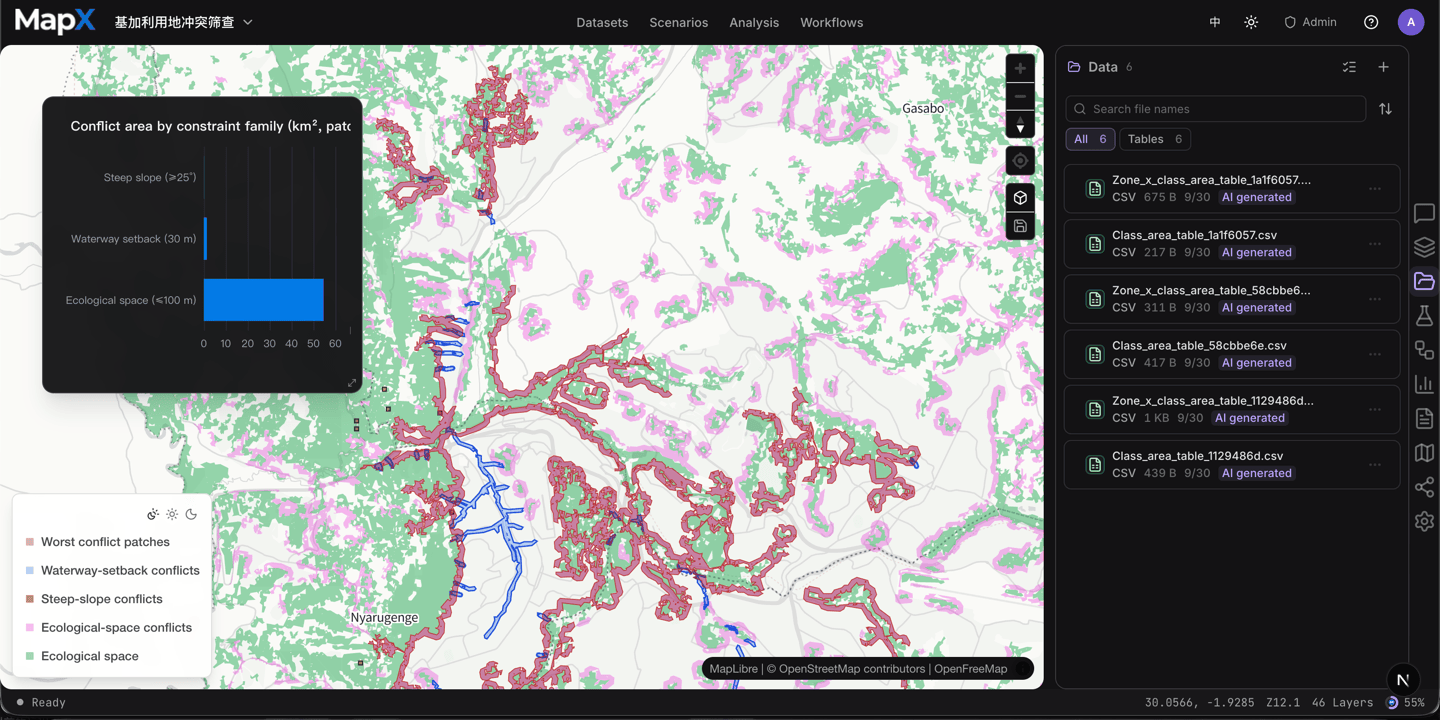
Each file row shows a format icon and name, plus the format, size, time, and provenance (uploaded or AI-generated). Use the toolbar to find what you need:
* **Search** — filter by file name.
* **Type filters** — switch between All, Table, Document, Text, and Other; each chip shows how many files of that kind the project holds.
* **Sort** — by newest, name, or size.
From the Data panel you can:
* **Upload files** — add new data or documents to the project.
* **Preview a file** — click a row to open it in the preview canvas (see below).
* **Reference a file in chat** — click the quote button on a row to attach the file to the chat, or use **@** in the input to insert its name.
* **Download files** — single downloads are available on paid plans.
* **Batch manage** — enter Select mode to download or delete several files at once.
 ## Previewing Files
Clicking a file row (or its quote button) opens a preview canvas and attaches the file to the chat, so follow-up questions automatically apply to it.
Previews are tailored to the file type:
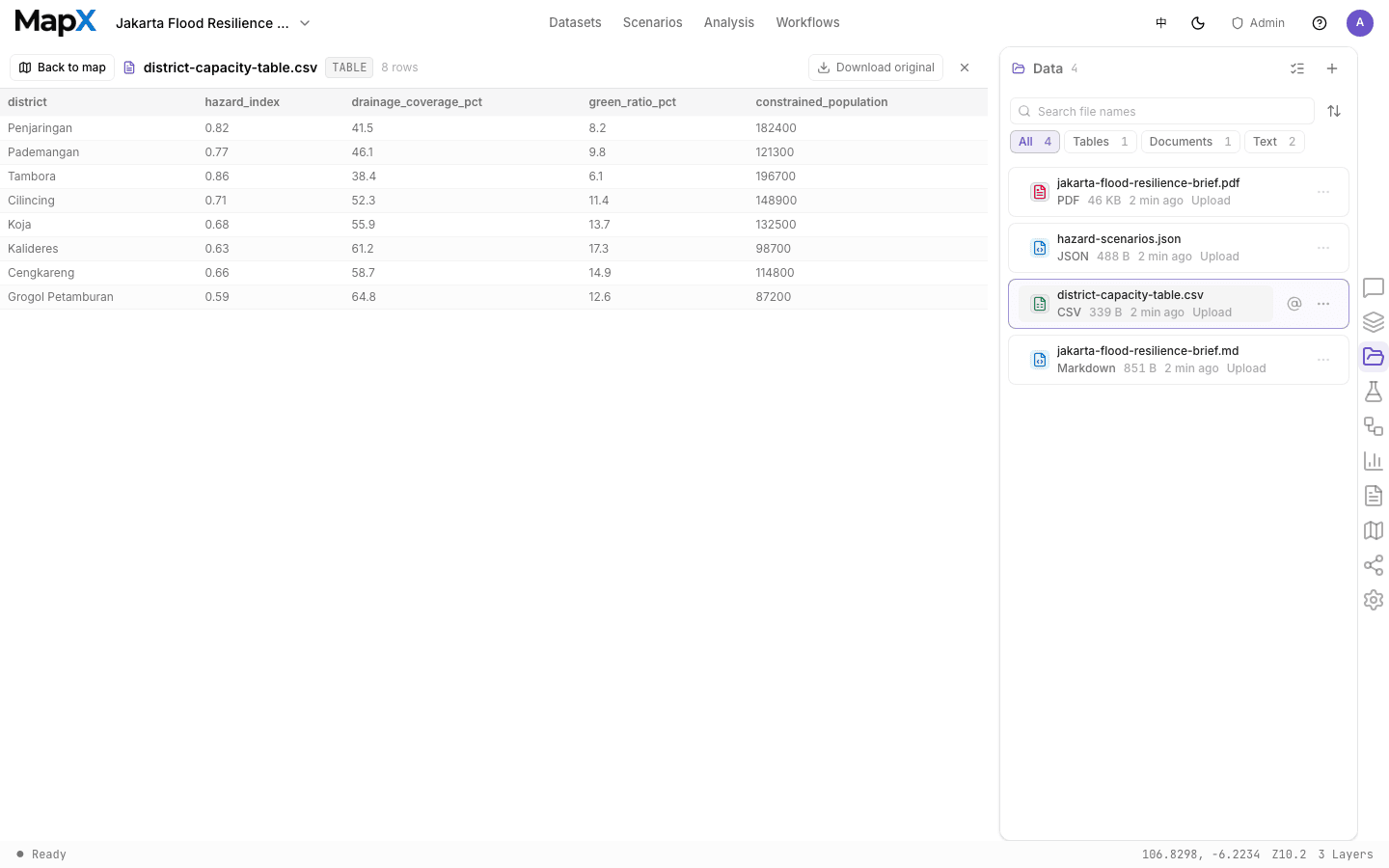
* **CSV, Excel, and tabular data** — rendered as a data table (the first 200 rows are shown).
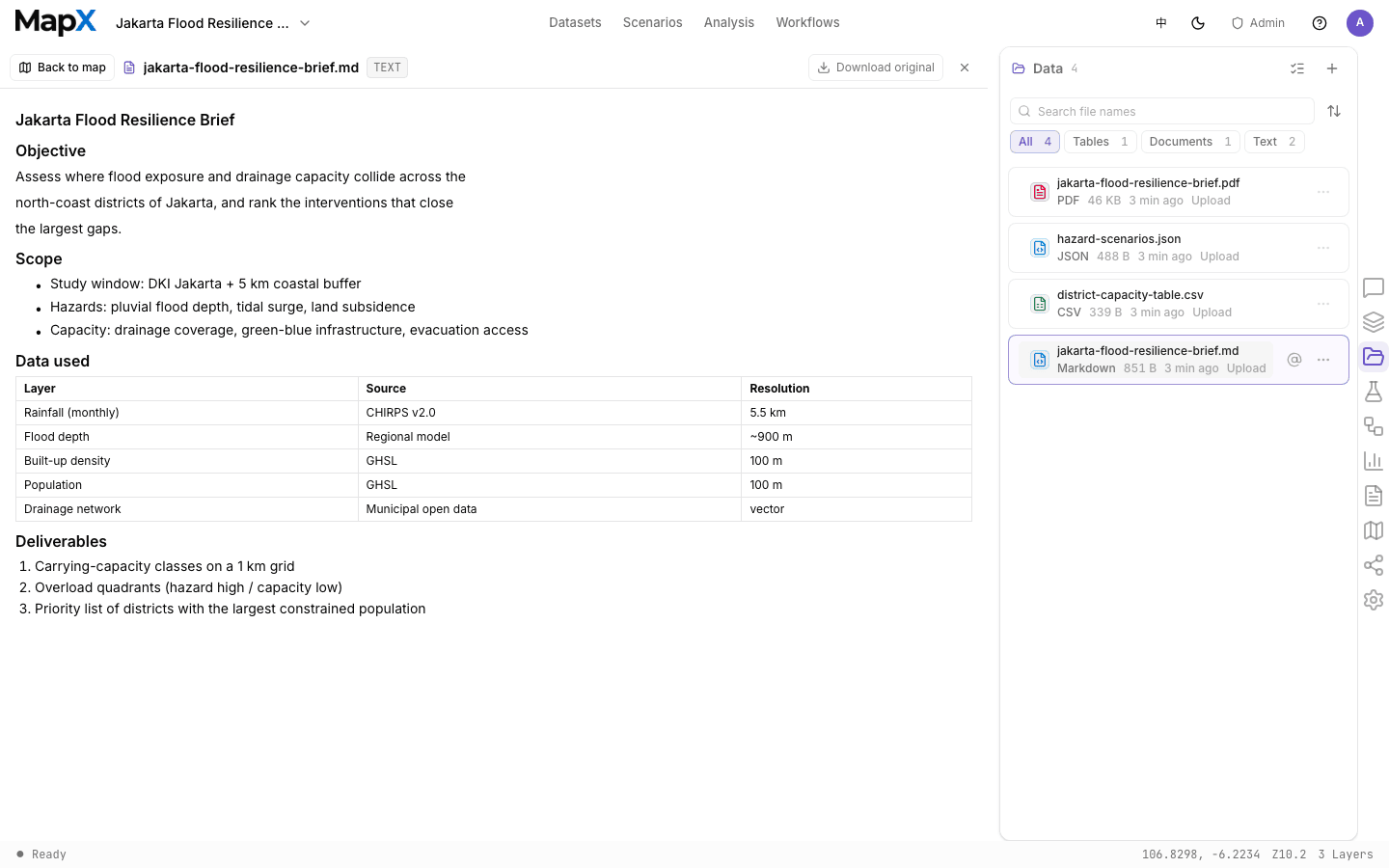
* **TXT, Markdown, and JSON** — rendered as text with a visible row or item count when content is truncated.
* **PDF and Word documents** — read-only previews of the pages.
## Previewing Files
Clicking a file row (or its quote button) opens a preview canvas and attaches the file to the chat, so follow-up questions automatically apply to it.
Previews are tailored to the file type:
* **CSV, Excel, and tabular data** — rendered as a data table (the first 200 rows are shown).
* **TXT, Markdown, and JSON** — rendered as text with a visible row or item count when content is truncated.
* **PDF and Word documents** — read-only previews of the pages.
 File contents are stored server-side and streamed to the browser as needed, so large files stay responsive. When the AI works with a file, it can return a file card in the conversation with the same preview.
## Deleting Files
Deleting a file is permanent. Files in the Data panel are standalone — deleting one does not remove layers that are already rendered; manage layer sources from the Layers panel instead. If you still need a file, download it first (paid plans) or export a [project manifest](/en/sharing/exporting) as a backup.
Storage counts toward your plan's quota. Check the [plans page](/en/account/plans) for storage limits and the [credits page](/en/account/credits) for how usage is billed.
This documentation is built and hosted on [Mintlify](https://mintlify.com), a developer documentation platform.
File contents are stored server-side and streamed to the browser as needed, so large files stay responsive. When the AI works with a file, it can return a file card in the conversation with the same preview.
## Deleting Files
Deleting a file is permanent. Files in the Data panel are standalone — deleting one does not remove layers that are already rendered; manage layer sources from the Layers panel instead. If you still need a file, download it first (paid plans) or export a [project manifest](/en/sharing/exporting) as a backup.
Storage counts toward your plan's quota. Check the [plans page](/en/account/plans) for storage limits and the [credits page](/en/account/credits) for how usage is billed.
This documentation is built and hosted on [Mintlify](https://mintlify.com), a developer documentation platform.