


What changes while it is on
The read-only rule is enforced on the server, not just in the prompt: a planning turn that tries to write gets
plan_readonly. Data the plan needs is declared in the plan — source, location, size, licence — and fetched during execution, after approval.
The flow
1
Describe the goal
Say what you want to know, not which tool to use — for example, “Which parts of this scenic area are ecologically most sensitive, and which can take moderate use?”
2
Answer the questions
MapX asks the questions that would change the plan — usually three or more, in a single card covering study area, method, precision, budget and deliverables. Each question carries a recommended option first, and the card shows an answer window. If the window closes unanswered, the plan continues with those recommended defaults and lists them as assumptions.
3
The AI researches
It inventories the data already in the project, checks coordinate systems, fields, extent and size, validates parameters against the analysis templates it intends to use, and records its assertions. Nothing lands in your project: no layers, charts, reports or runs. Scratch files from this phase stay under
.plan-research/ and cannot be imported.4
Read the plan
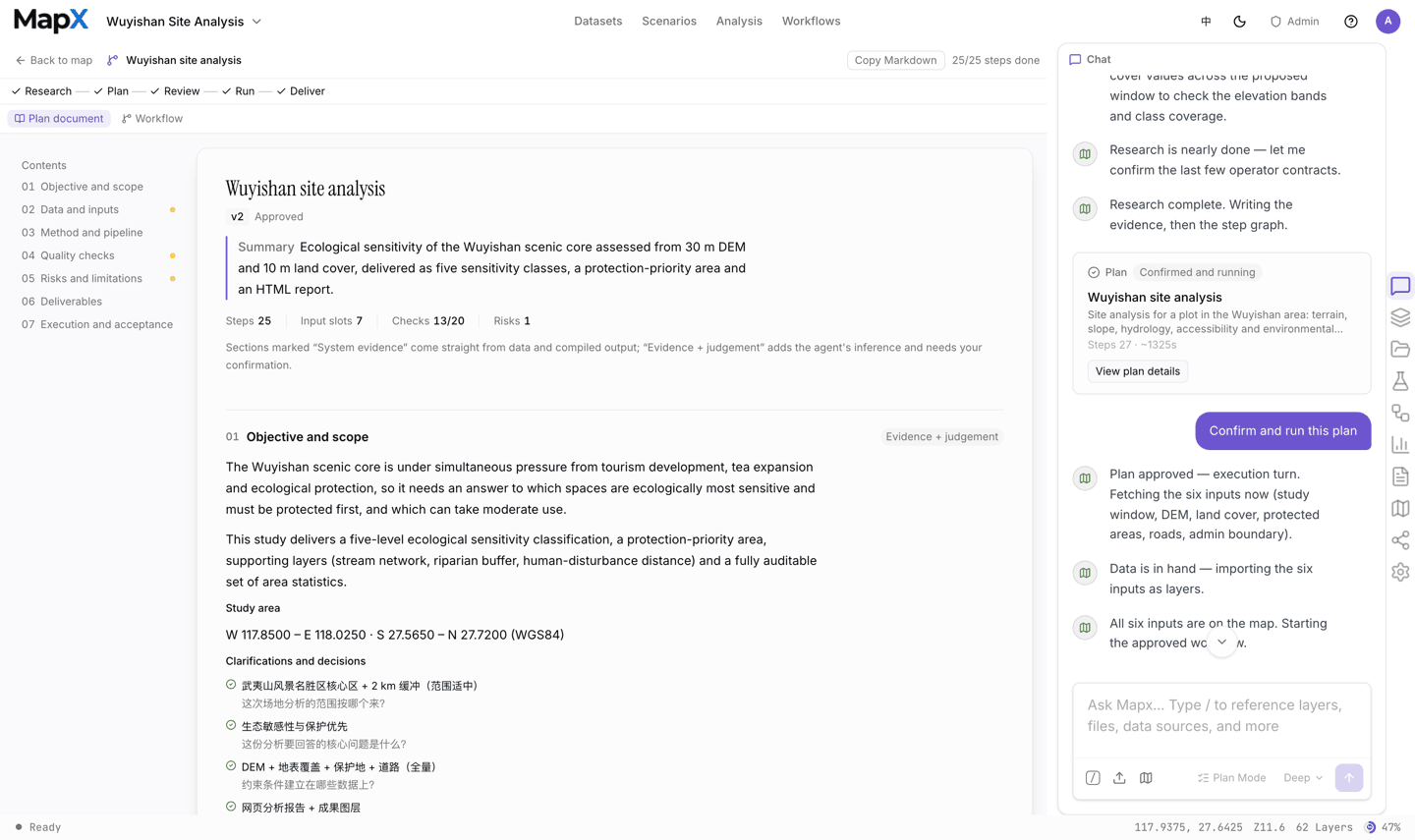
The plan is a document, not a paragraph in the chat: seven chapters covering objective, data, method, quality checks, risks, deliverables and acceptance. It is versioned, and each chapter is marked with where its content comes from.
5
Decide
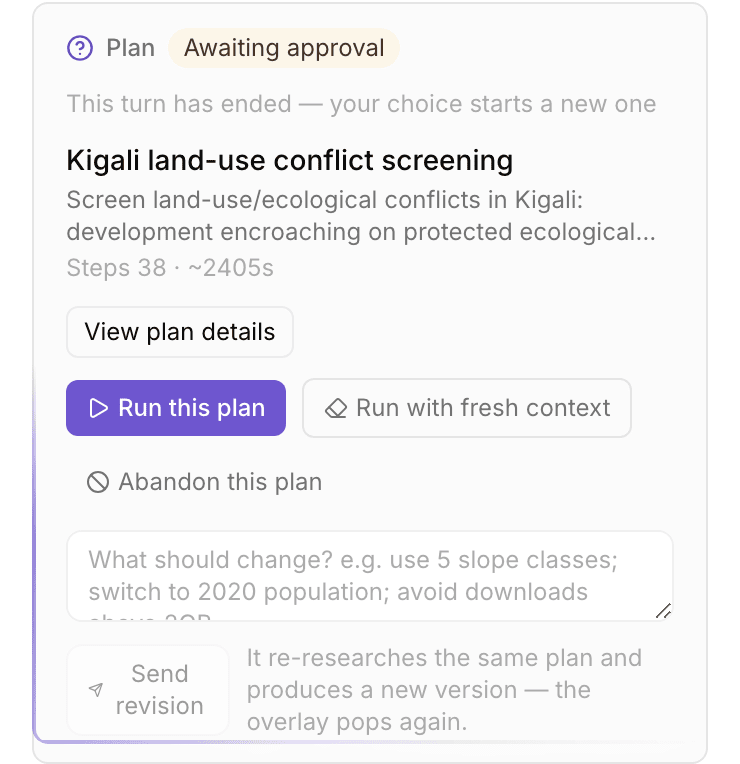
A decision card appears in the chat. Approving it starts a new turn that fetches any declared data, runs the workflow, and delivers layers, tables and reports.
The decision card
The decision card in the chat is the only place a plan can be approved. You see the plan’s name, status, step count, input slots and estimated runtime, and these actions:
After you decide, the card stays in the conversation as a read-only record, so the history of what was approved, revised or abandoned remains visible.
The plan document
The plan is rendered in the workbench and can be copied as Markdown. Its seven chapters are:
Every chapter is labelled system evidence, AI judgement, or evidence + judgement, so you can tell what came from your data and what the AI inferred.
Plan statuses
A plan moves through four statuses:
Editing an approved plan sends it back to reviewing and clears the approval, so a changed plan can never run on the old approval.
When MapX blocks the plan
The gate is deliberate: a plan that cannot run is not shown as ready. The blocks you will see most often:Turning it off
Plan mode is a per-session setting, saved with the project. Approving a plan switches it off for that session, so follow-up questions act immediately; turn it back on when you want another plan. Keep it on for analysis you will act on — anything with thresholds, budgets, or a deliverable someone else will read. Turn it off for quick, reversible work: a style tweak, a lookup, a visual experiment.Related
- AI chat — how prompts and turns work
- Workflows and plans — publish an approved plan as a reusable workflow and run it on new data
- Analysis — the tools a plan is built from
- Scenarios — start from a prepared study area instead of a blank project